ş ğ ö ç ʼ on your Mac — one key each
“Özbekça” is a keyboard layout for the new Uzbek Latin alphabet. Latin letters stay where QWERTY has them, while ş, ğ, ö, ç and the apostrophe letter ʼ get keys of their own. It is not an app — it is a native macOS keyboard layout.
Version 1.0.0 · 185 KB · Apple Silicon and Intel · no network access
Where the letters are
The Uzbek letters sit on the punctuation keys; full stop and comma move next door. Every other letter is where it is on an English keyboard.
| Key (QWERTY) | Normal | Shift |
|---|---|---|
| ; | ş | Ş |
| ' | ğ | Ğ |
| , | ö | Ö |
| . | ç | Ç |
| § (top-left corner) | ʼ | ' |
| / | . | : |
| \ | , | ; |
| [ ] | “ ” | { } |
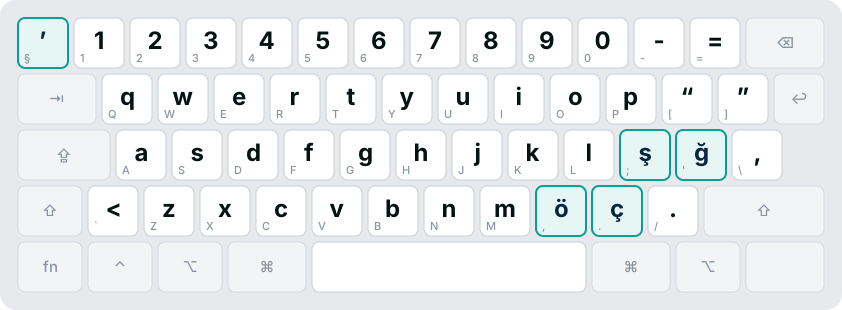
Green — Uzbek letters. Dashed orange — dead key: it adds a mark to the next letter (e.g. ⌥⇧; then o → ö). Small grey text — the key’s QWERTY name.
Try it without installing
In this box your keyboard behaves like the “Özbekça” layout, including Shift, Caps Lock and Option. Dead keys do not work here.
Install
Two ways. The package is the easiest.
Download the package
Download Ozbekca-1.0.0.pkg and double-click it.
Get past the macOS warning
The package is not signed with an Apple Developer ID, so macOS stops it as “not verified”. This is expected:
- Click Done in the warning.
- Open System Settings → Privacy & Security.
- Next to “Ozbekca-1.0.0.pkg was blocked”, click Open Anyway and enter your password.
Choose who gets it
“Install for me only” — no password. “Install for all users of this computer” — administrator password.
Turn it on
- System Settings → Keyboard → Input Sources → Edit…
- Click + at the bottom.
- Pick Uzbek (or Others) on the left, then “Uzbek (new Latin)”, and click Add.
Manual install (no package)
- Download Ozbekca-1.0.0.bundle.zip and open it.
- In Finder choose Go → Go to Folder… (⇧⌘G) and enter
~/Library/Keyboard Layouts. - Drag Ozbekca.bundle into that folder.
- Log out and back in, then do step 4 above.
Check the file (SHA-256)
Run shasum -a 256 Ozbekca-1.0.0.pkg in Terminal. The result must match (SHA256SUMS.txt):
Remove
The layout is a single folder, so removing it is simple.
- In Input Sources, select Özbekça and click −.
- Finder → Go → Go to Folder… →
~/Library/Keyboard Layouts(or/Library/Keyboard Layoutsif installed for all users) and move Ozbekca.bundle to the Bin. - Log out and back in.
Or in Terminal:
rm -rf ~/Library/Keyboard\ Layouts/Ozbekca.bundle
sudo rm -rf "/Library/Keyboard Layouts/Ozbekca.bundle"
pkgutil --forget com.alharitm.keyboardlayout.ozbekca
FAQ
The questions people ask most.
Why does macOS say it can’t verify the package? Is it safe?
An Apple Developer ID costs $99 a year. The package is not signed with one yet and has not been notarized by Apple, so macOS warns you. Inside there is only one layout file (plain XML text), an icon and names: no program, no network access. You can check the file with its SHA-256 value.
How is this different from the “F-keyboard”?
The Uzbek F-keyboard is an ergonomic layout with every letter moved — faster, but it has to be learned. “Özbekça” is plain QWERTY with ş ğ ö ç ʼ added. If you want to type Uzbek today without relearning, use “Özbekça”.
Where is the ʼ letter? My keyboard has no § key.
The layout is made for ISO keyboards (Europe, Türkiye): ʼ is on the § key in the top-left corner. US (ANSI) keyboards don’t have that key; there you can insert ʼ from the Character Viewer (⌃⌘Space).
Does Caps Lock work?
Yes. With Caps Lock on you get Ş Ğ Ö Ç; punctuation stays the same.
What does Option type?
With ⌥: € £ ₽ ₺ ¥, « » quotes, — dash, ← → arrows, 🇺🇿 (⌥U) and more. ⌥⇧ gives dead keys, e.g. ⌥⇧/ then e → é. The maps above show everything.
The layout isn’t in the list
Log out and back in. If an old “Özbekça.keylayout” file is still in ~/Library/Keyboard Layouts, delete it: two layouts with the same name confuse macOS.